ShowForAi · Visual automation for Windows
Teach it once.
Repeat your Windows task.
Record a small routine on a recoverable copy, generate and save a script, then click Run to repeat the actions you demonstrated.
64-bit Windows · One primary display · Local-first
- 01Full runComplete an entire fixed workflow in order
- 02Auxiliary tasksLet several fixed click tasks wait independently
- 03Visual targetingFind the target again on the current screen
Do it yourself once
Stop, name it,
then get back to your day.
ShowForAi records the real actions and their order. Name and submit the recording when you stop; visual targets are generated in the background and the finished script is saved locally.
- 01Start recording
Begin from the fixed screen you know.
- 02Do the workflow
Complete it once the normal way.
- 03Stop and name it
Give this workflow a clear name.
- 04Generate in the background
Match each action to its visual target.
- 05Save the script
Run, edit, or combine it when ready.
Everyday work · Full run
Update two reports.
Run them in order.
Demonstrate an update and save on a test copy. Put saved scripts into an ordered combination, open both reports, then click Run and check both files.
Start with recoverable copies, preserve the originals and inspect the actual output. A completed status does not replace checking the result.
- 1Teach and save
- 2Combine in order
- 3Open both reports
- 4Run and check
Auxiliary tasks
Watch fixed targets.
Control each task.
Create auxiliary tasks from your own recordings of 1–100 visual clicks. Control each task independently. It waits while a target is absent or unclear, clicks once when the target is clear, then waits for it to disappear before the next trigger.
Each task keeps a copy of its targets from creation. Editing the source script does not update the task; recreate it after interface or target changes.
Start, pause, and stop each task separately. F9 pauses all enabled auxiliary tasks and stops the active script. New tasks and tasks after an app restart stay off until you start them manually.
Tasks use the mouse and yield when they detect you taking over. Watching continues while minimized and ends when you exit the app. Auxiliary tasks perform visual clicks only, not typing, scrolling, or dragging, and do not verify business results in the target app.
Visual targeting
Remember the target, not its coordinates.
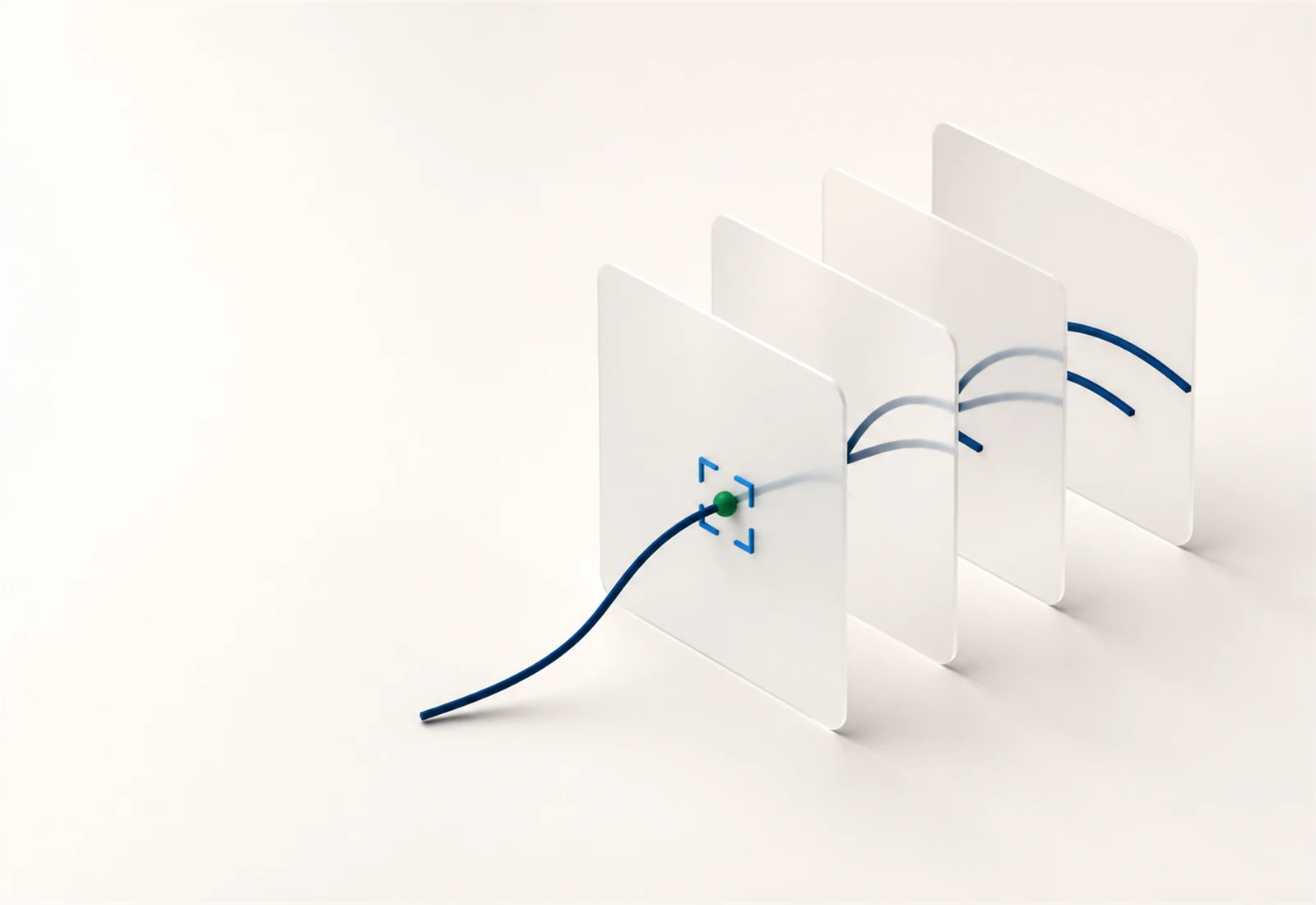
A coordinate macro repeats a screen position. ShowForAi stores a visual target for the action, finds it on the current screen, and then performs that step.
- Target visibleLocate it on the current screen
- Position changedSearch for the same visual target
- Target absentStay on the step, never click the old position
Windows desktop · 64-bit
Try your first
Windows task.
Existing local scripts can run while signed out. Recording and AI-assisted script generation require sign-in and internet access. Membership includes AI visual recognition under fair use.
Current version Unavailable
The current Windows build is explicitly unsigned and may show “Unknown publisher.” Use only the official links verified dynamically by this page, and check the SHA256 values before running the files.
Installer SHA256: Unavailable
ZIP SHA256: Unavailable
SFA.exe SHA256: Unavailable
Official downloads are unavailable.
International membership
International membership is a one-time payment: $5.00 for 30 days or $50.00 for 365 days. It does not renew automatically.
Membership includes AI visual recognition under fair use. Excessive use or abuse may be restricted.
FAQ
Know the boundaries
before you begin.
What about duplicate targets, resolution, and scaling?
Identical or similar icons can cause SFA to select the wrong object. Recheck scripts after changes to system scaling, resolution, or the target interface. A completed step does not prove the intended result. Start with recoverable test data and inspect the actual outcome.
Do I need internet access or an account?
Existing local scripts can run while signed out. Recording and AI-assisted script generation require sign-in and internet access. Membership includes AI visual recognition under fair use.
Is my screen content uploaded automatically?
No. Visual templates and typed text stay local by default. Relevant data is handled under our Privacy Policy only when you actively use sync, sharing, or authorized cloud recognition.
How does sharing work?
Scripts and combinations can be shared for free. Paid script purchases, creator revenue and payouts are paused. Stripe is used for international memberships only.